How to Use the Virtual Calculator in GATE Exam (Post-Fix Guide)
By Meet Dhanani · Published: 14 July 2026 · Updated: 15 September 2026

The single most important thing to know about the GATE virtual calculator: it uses post-fix input. You type the value first, then press the function button. Get this wrong and every calculation fails.
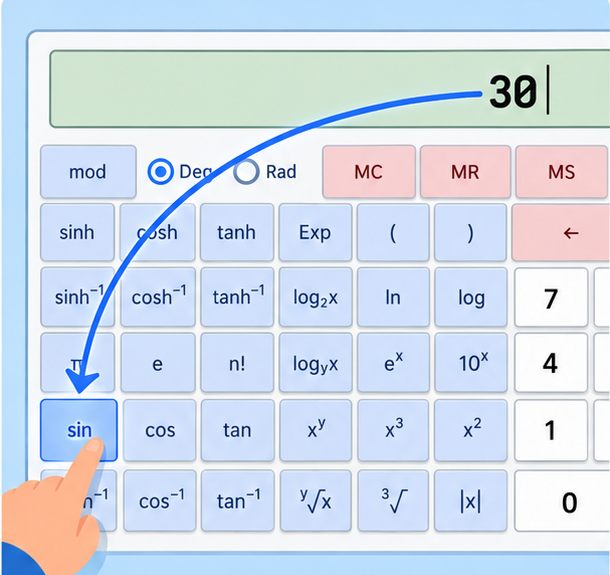
Post-Fix Input: The #1 Thing Students Get Wrong
On a physical Casio calculator, you press sin, then type 30, then press =. On the GATE virtual calculator, you type 30 first, then click the sin button. The result (0.5 in degree mode) appears immediately.
This reversed order applies to every unary function: sin, cos, tan, log, ln, sqrt, x^2, x^3, n!, 1/x, and all their inverses. Students who do not practice this waste 5-10 seconds per calculation just from confusion, and often get wrong answers by applying functions to the wrong value.
Button Categories and How to Use Them
Basic Arithmetic
Addition, subtraction, multiplication, and division work the normal way. Type 5, click +, type 3, click = to get 8. The only difference from a physical calculator is you are clicking, not typing.
Trigonometric Functions
Six trig buttons: sin, cos, tan, sin^-1, cos^-1, tan^-1. All use post-fix input.
To calculate sin(30 degrees): Type 30, click sin. Result: 0.5.
Check your angle mode every single time. The Deg/Rad toggle is at the top of the calculator. Default is Degrees. If you accidentally switch to Radians, sin(30) gives 0.988 instead of 0.5. This is the second most common mistake after post-fix confusion.
There are no cot, sec, or cosec buttons. Use the reciprocal approach: cosec(30) = type 30, click sin, click 1/x. Result: 2.
Logarithmic Functions
Four log buttons: log (base 10), ln (natural log), log2x (base 2), logyx (arbitrary base).
To calculate log(1000): Type 1000, click log. Result: 3.
To calculate ln(e): Type the value of e (click the e constant button), then click ln. Result: 1.
For antilog (the reverse of log), use the 10^x button. To find antilog(2): Type 2, click 10^x. Result: 100. For natural antilog, use e^x instead. See our antilog guide for more detail.
Memory Functions
Five buttons: MC (Memory Clear), MR (Memory Recall), MS (Memory Store), M+ (Memory Add), M- (Memory Subtract). An "M" indicator appears in the display when a value is stored.
Memory saves significant time on multi-step problems. Instead of writing intermediate results on the scribble pad and re-entering them, use MS to store and MR to recall. For a problem like (sin(30) + cos(60)) / 2: calculate sin(30) = 0.5, press MS. Calculate cos(60) = 0.5, press M+ (memory now holds 1.0). Press MR to recall 1.0, then divide by 2 = 0.5.
Powers and Roots
x^2 and x^3 are post-fix: type 5, click x^2, result is 25.
x^y is a binary operation: type 2, click x^y, type 10, click =. Result: 1024 (2^10).
Square root and cube root are post-fix: type 27, click cube root, result is 3.
For nth root (y-root-x): type 16, click y-root-x, type 4, click =. Result: 2 (4th root of 16). For the complete reference of all 60+ scientific functions, see our scientific calculator guide.
The 4 Mistakes That Cost Marks
1. Wrong Angle Mode
sin(pi/6) in Radian mode gives 0.5. sin(pi/6) in Degree mode gives 0.00914. If your trig answer looks wildly wrong, check the Deg/Rad toggle first.
2. Not Pressing C Before New Calculations
Residual values from the previous calculation can corrupt your next one. Press C at the start of every new problem. It takes one click and prevents cascading errors.
3. Skipping Parentheses
The calculator follows operator precedence. Entering 2 + 3 x 5 gives 17, not 25. If you mean (2 + 3) x 5, you must use the parenthesis buttons explicitly.
4. Ghost Memory Values
Memory persists across questions. If you used MS on question 12, that value is still in memory on question 15. Press MC at the start of each new question where you plan to use memory functions.
Practice Strategy
Use our free online calculator for all your preparation calculations. Disable keyboard input with the toggle to match exam conditions where only mouse clicks work. Time yourself on sample problems to track your speed improvement over days and weeks.
For specific speed techniques like memory shortcuts, chain calculations, and the Exp button for scientific notation, read our 15 tips and tricks.